Using StackQL with Claude Desktop
StackQL integrates with Claude Desktop via the Model Context Protocol (MCP), enabling you to query and provision cloud resources across multiple cloud providers using natural language. This powerful combination allows you to interact with your cloud infrastructure conversationally while leveraging StackQL's SQL-based interface under the hood.
There are three installation options, presented here in recommended order: install from the Anthropic Connector Directory, install from a downloaded bundle, or register a locally installed StackQL binary manually.
Install from the Connector Directory (recommended)
The easiest way to use the StackQL MCP server with Claude Desktop is to install it from the Anthropic Connector Directory. In Claude Desktop: Settings -> Connectors -> Add -> Browse Connectors, search for StackQL, and click Install. There is nothing to download and no separate StackQL installation is required.
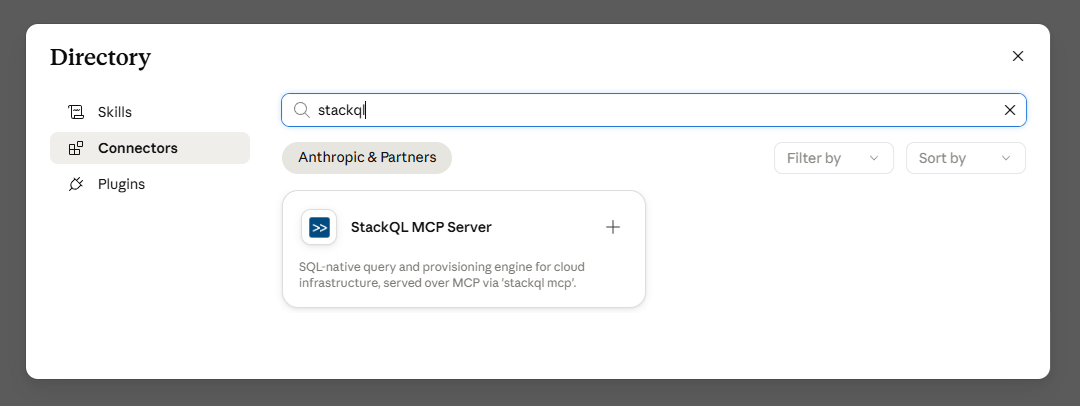
You can also view the listing directly at claude.ai/directory.
This installs the StackQL MCP server in-process for your platform: the listing serves a combined multiplatform bundle containing the signed binaries for every supported platform (macOS universal, Windows x64, Linux x64 and arm64), and Claude Desktop selects the right one for your machine automatically. The Windows binary is Authenticode-signed and the macOS binary is Apple-notarised - the same binaries as the standalone StackQL release.
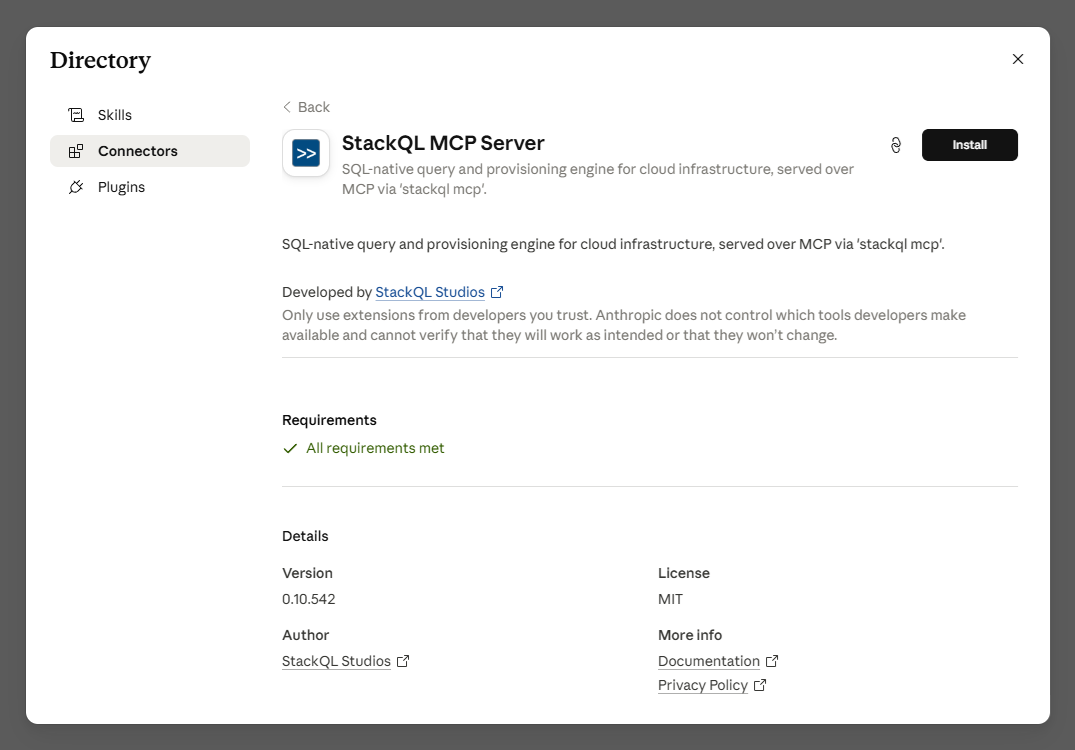
A directory-installed connector inherits Claude Desktop's environment, so set the environment variables for your providers at the operating-system level before launching Claude Desktop - see Provider-Specific Credentials. Claude Desktop captures its environment at launch: after changing variables you must fully quit Claude Desktop (including the tray icon on Windows) and relaunch. Asking the agent to run reload_credentials reports per-provider credential status and is the fastest way to confirm what the server can and cannot see.
Claude Desktop advertises the MCP elicitation capability, so the default server mode (safe) will prompt you for approval on each mutation - see Server modes.
Install from a downloaded bundle
Use this installation option to pin a specific version, install without Connector Directory access, or verify checksums yourself before installing.
The prebuilt MCP Bundle (.mcpb) is a one-click installable package containing the signed stackql binary and the server configuration. No separate StackQL installation is required.
Download the bundle for your platform from the latest release:
| Platform | Bundle |
|---|---|
| macOS (universal) | stackql-mcp-darwin-universal.mcpb |
| Windows x64 | stackql-mcp-windows-x64.mcpb |
| Linux x64 | stackql-mcp-linux-x64.mcpb |
| Linux arm64 | stackql-mcp-linux-arm64.mcpb |
Then in Claude Desktop: Settings -> Extensions -> Install Extension and select the downloaded file. The embedded binary is Authenticode-signed (Windows) and Apple-notarised (macOS); each bundle has a .sha256 checksum alongside it on the release page. To verify before installing:
# macOS / Linux
shasum -a 256 -c stackql-mcp-darwin-universal.mcpb.sha256
The server is also listed on the Official MCP Registry as io.github.stackql/stackql-mcp, which pins these checksums.
Manual Configuration
If you already have StackQL installed, you can register the StackQL MCP server in Claude Desktop's configuration file directly.
Prerequisites
Before setting up StackQL with Claude Desktop, ensure you have:
- StackQL installed - Download and install StackQL from stackql.io or use a package manager
- Claude Desktop - Download from Anthropic's website
- Cloud provider credentials - API keys or credentials for the cloud providers you want to work with
Verify StackQL is in your system PATH by running:
stackql --version
Setting Up the MCP Server
To enable Claude Desktop to communicate with StackQL, you need to configure the MCP server in your Claude Desktop configuration file.
Windows
Edit the configuration file located at:
%APPDATA%\Claude\claude_desktop_config.json
macOS
Edit the configuration file located at:
~/Library/Application Support/Claude/claude_desktop_config.json
Linux
Edit the configuration file located at:
~/.config/Claude/claude_desktop_config.json
Configuration Example
Add the following configuration to your claude_desktop_config.json file:
{
  "mcpServers": {
    "stackql": {
      "command": "stackql",
      "args": [
        "mcp",
        "--mcp.server.type=stdio",
        "--tls.allowInsecure"
      ],
      "env": {
        "GOOGLE_CREDENTIALS": "/path/to/google-credentials.json",
        "AWS_ACCESS_KEY_ID": "your-aws-access-key-id",
        "AWS_SECRET_ACCESS_KEY": "your-aws-secret-access-key",
        "AZURE_CLIENT_ID": "your-azure-client-id",
        "AZURE_CLIENT_SECRET": "your-azure-client-secret",
        "AZURE_TENANT_ID": "your-azure-tenant-id",
        "DATABRICKS_CLIENT_ID": "your-databricks-client-id",
        "DATABRICKS_CLIENT_SECRET": "your-databricks-client-secret",
        "OPENAI_API_KEY": "your-openai-api-key"
      }
    }
  }
}
You only need to include environment variables for the cloud providers you plan to use. Remove any unused provider credentials from the configuration.
Never commit your claude_desktop_config.json file with actual credentials to version control. Use secure credential management practices.
Claude Desktop advertises the MCP elicitation capability, so the default server mode (safe) will prompt you for approval on each mutation. Switch to mode: read_only for inventory-only access or mode: full_access to skip prompts - see Server modes.
Using a Credentials File (--env.file)
An alternative to the env block - and on Windows the recommended one - is to keep credentials in a dotenv-style file and pass it with the --env.file flag:
{
  "mcpServers": {
    "stackql": {
      "command": "stackql",
      "args": [
        "mcp",
        "--mcp.server.type=stdio",
        "--tls.allowInsecure",
        "--env.file=C:\\Users\\me\\stackql-credentials.env"
      ]
    }
  }
}
With a minimal credentials file:
# stackql-credentials.env
GOOGLE_CREDENTIALS=/path/to/google-credentials.json
AWS_ACCESS_KEY_ID=your-aws-access-key-id
AWS_SECRET_ACCESS_KEY=your-aws-secret-access-key
Why this beats the env block:
- Changes to the
envblock require a full Claude Desktop restart (including quitting the tray icon) before the MCP subprocess sees them, and on Windowssetxwrites the registry - it never reaches the running Desktop process. - The
--env.filefile can be created or rotated at any time - it does not even need to exist when the server starts - and asking the agent to runreload_credentialspicks up the changes without any restart.
--env.file and reload_credentials are available in StackQL releases after v0.10.542.
Provider-Specific Credentials
Different cloud providers require different authentication methods, see the provider docs (https://stackql.io/docs/providers)for the environment variables required for your desired provider(s).
Restarting Claude Desktop
After updating the configuration file, restart Claude Desktop to load the new MCP server configuration. The StackQL MCP server will be automatically started when you begin a new conversation.
What You Can Do
Once configured, you can use natural language in Claude Desktop to:
Query Cloud Resources
Ask Claude to retrieve information about your cloud infrastructure:
- "Show me all my GCP compute instances in the us-central1 region"
- "List all S3 buckets in my AWS account"
- "What Azure virtual machines are running in my subscription?"
- "Show me all Kubernetes pods in the default namespace"
Provision Resources
Create and deploy cloud resources using conversational commands:
- "Create an S3 bucket named 'my-data-bucket' in us-west-2"
- "Deploy a GCP Cloud Storage bucket with versioning enabled"
- "Launch a small EC2 instance in us-east-1"
- "Create an Azure resource group in westus2"
Analyze and Audit
Perform security audits and compliance checks:
- "Show me all publicly accessible S3 buckets"
- "List IAM users who haven't logged in for 90 days"
- "Find all GCP instances without proper labels"
- "Identify Azure VMs without backup enabled"
Cross-Cloud Operations
Query and compare resources across multiple cloud providers:
- "Show me all compute instances across AWS, GCP, and Azure"
- "Compare storage costs between AWS S3 and GCP Cloud Storage"
- "List all databases across all cloud providers"
Infrastructure as Code
Generate and execute infrastructure deployment queries:
- "Create a stack of resources including a VPC, subnet, and EC2 instance"
- "Deploy a complete GKE cluster with node pools"
- "Set up a multi-region deployment in AWS"
Modify Resources
Update existing cloud resources:
- "Add tags to all untagged EC2 instances"
- "Enable encryption for S3 bucket 'my-bucket'"
- "Update the machine type of GCP instance 'web-server-1'"
- "Change the ACL on my Cloud Storage bucket to private"
Delete Resources
Remove cloud resources when no longer needed:
- "Delete the S3 bucket 'temp-bucket'"
- "Remove all stopped EC2 instances"
- "Clean up unused GCP disks"
Example Conversation
Here's an example of how you might interact with Claude Desktop using StackQL:
You: "Can you show me all my GCP compute instances?"
Claude: Executes a StackQL query and returns results in a formatted table showing instance names, zones, machine types, and status
You: "Create a new Cloud Storage bucket named 'analytics-data-2025' in the us-central1 region with uniform bucket-level access"
Claude: Executes a StackQL INSERT statement to create the bucket and confirms the creation
You: "Now list all my Cloud Storage buckets"
Claude: Executes a SELECT query and shows all buckets including the newly created one
Tips and Best Practices
-
Be Specific: The more specific your request, the better results you'll get. Include resource names, regions, and specific attributes when possible.
-
Use Natural Language: You don't need to know SQL syntax - Claude translates your natural language requests into StackQL queries.
-
Review Before Executing: For destructive operations (DELETE, UPDATE), Claude will typically show you what will be executed before proceeding.
-
Multi-Step Operations: You can chain operations together in a single conversation. Claude maintains context throughout the session.
-
Error Handling: If a query fails, Claude can help troubleshoot and suggest corrections based on the error message.
-
Explore Capabilities: Ask Claude "What can I do with StackQL?" to get suggestions specific to your configured providers.
Troubleshooting
MCP Server Not Starting
If Claude Desktop cannot connect to the StackQL MCP server:
- Verify StackQL is in your PATH
- Check that your
claude_desktop_config.jsonfile is valid JSON - Ensure the file path in the configuration is correct for your operating system
- Review the Claude Desktop logs for error messages
Authentication Errors
If you receive authentication errors:
- Verify your cloud provider credentials are correct
- Ensure credential files exist at the specified paths
- Check that environment variables are properly formatted in the configuration - asking the agent to run
reload_credentialsreports per-provider credential status and is the fastest way to see which variable is missing - Confirm your credentials have the necessary permissions
Permission Errors
If operations fail due to insufficient permissions:
- Verify your service account or IAM user has the required permissions
- Check provider-specific IAM policies
- Ensure API services are enabled in your cloud projects
Learn More
- StackQL MCP Command Reference
- StackQL Provider Registry
- Language Specification
- Model Context Protocol Documentation
Security Considerations
- Store credentials securely and never commit them to version control
- Use least-privilege access principles for service accounts
- Regularly rotate credentials and API keys
- Monitor MCP server logs for unusual activity
- Consider using cloud provider credential management tools (e.g., Secret Manager, Parameter Store)